
Network & Connectivity
How to Set Up a Network on the Card Reader
This document will walk you through each step of how to make the Network Setup and Intuitivo System Updates for Castles S1U2 Device
- Ensure the APOP device is powered on and verify that the card reader is also powered on and working properly.

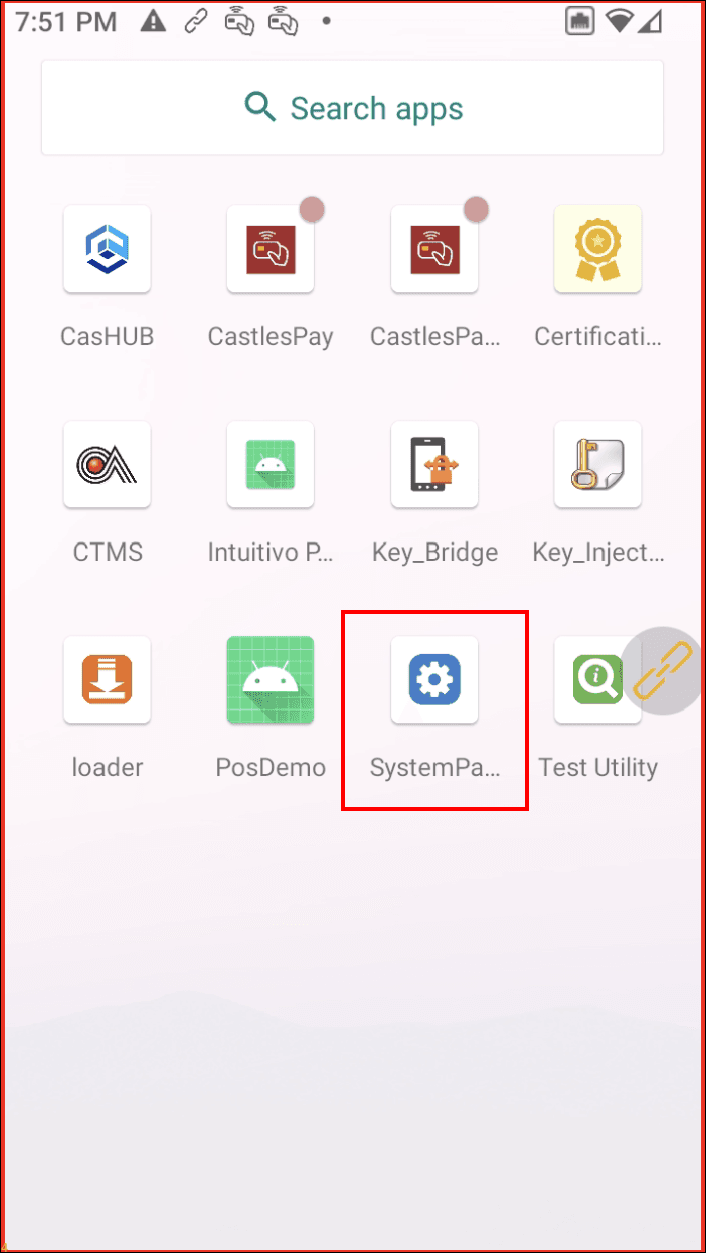
- On the main screen, scroll up to view the default list of applications and tap on the SystemPanel app.
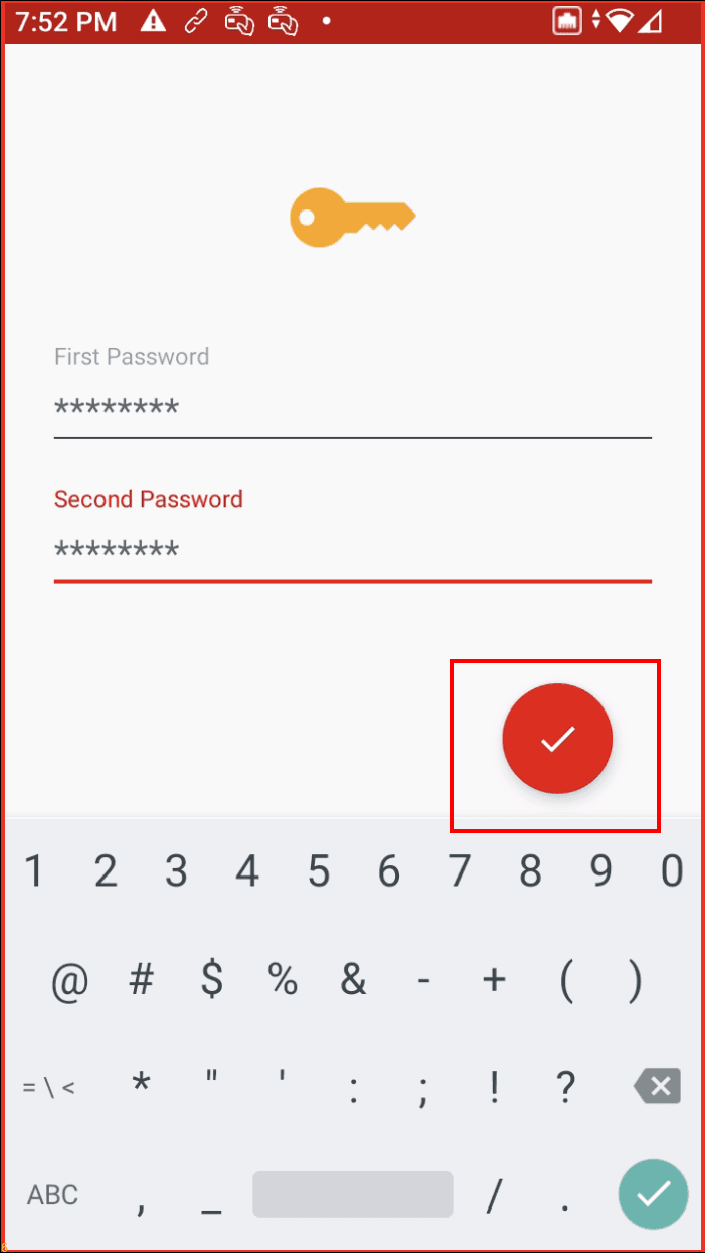
- You will be prompted to enter a password:
First Password: 00000000
Second Password: 00000000
After entering the passwords, tap the Check button.
-
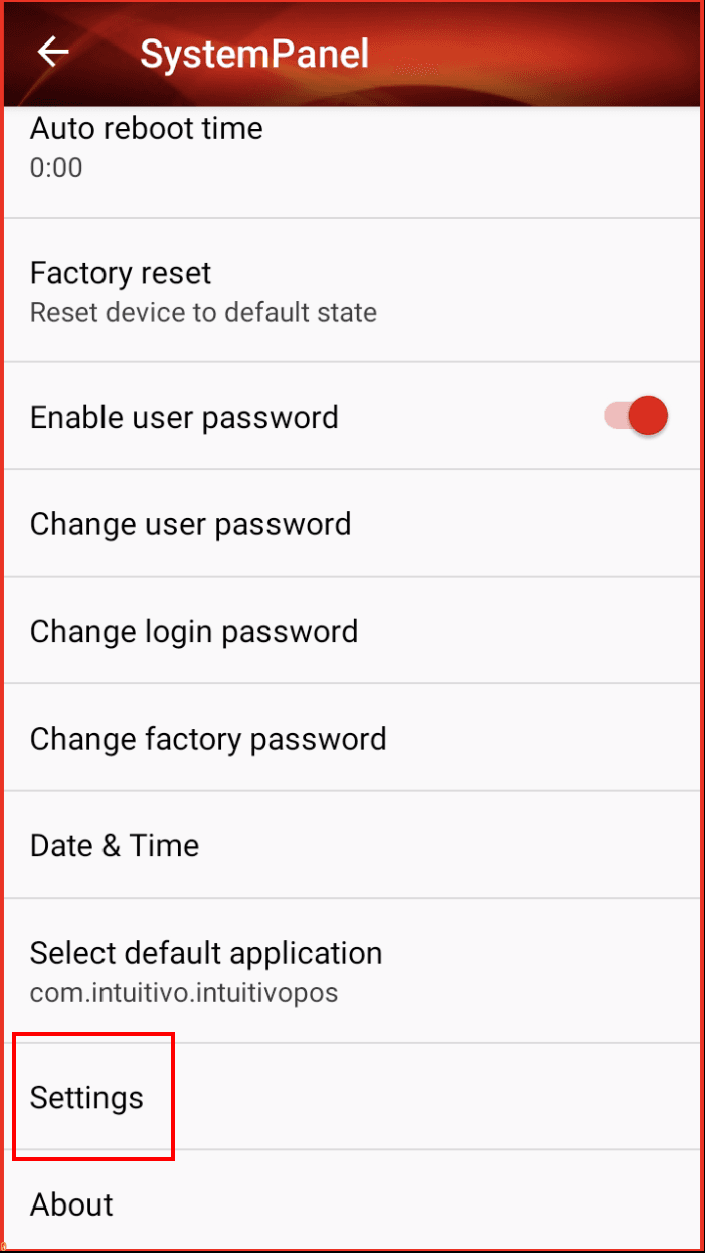
Once in SystemPanel, look for and select Settings
-
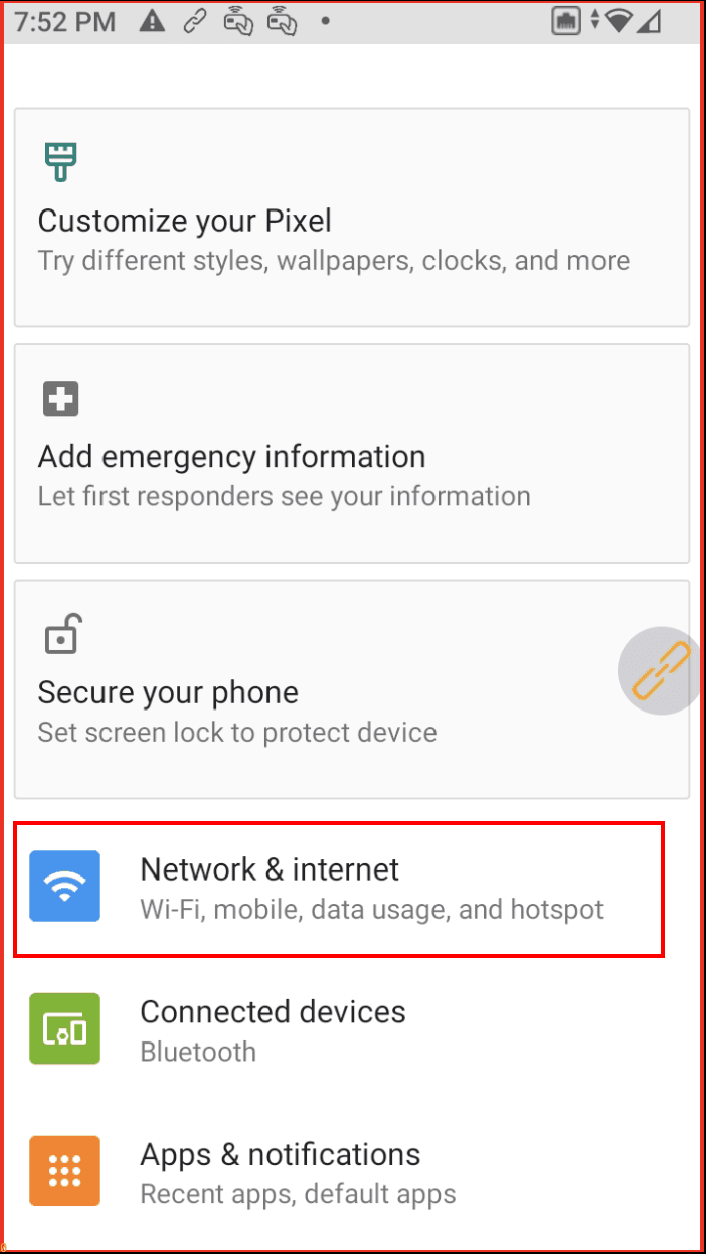
In Settings, tap on Network & Internet.
-
Tap on Wi-Fi and select the network you want to connect to.NOTE: It is essential that the Wi-Fi network has a password, as the device will not connect to open networks for security reasons.
-
Once connected, make sure the Wi-Fi is properly connected.
-
Return to the main menu by pressing the HOME button.

- Scroll up again on the main screen to see the default applications and tap on the CasHUB app.
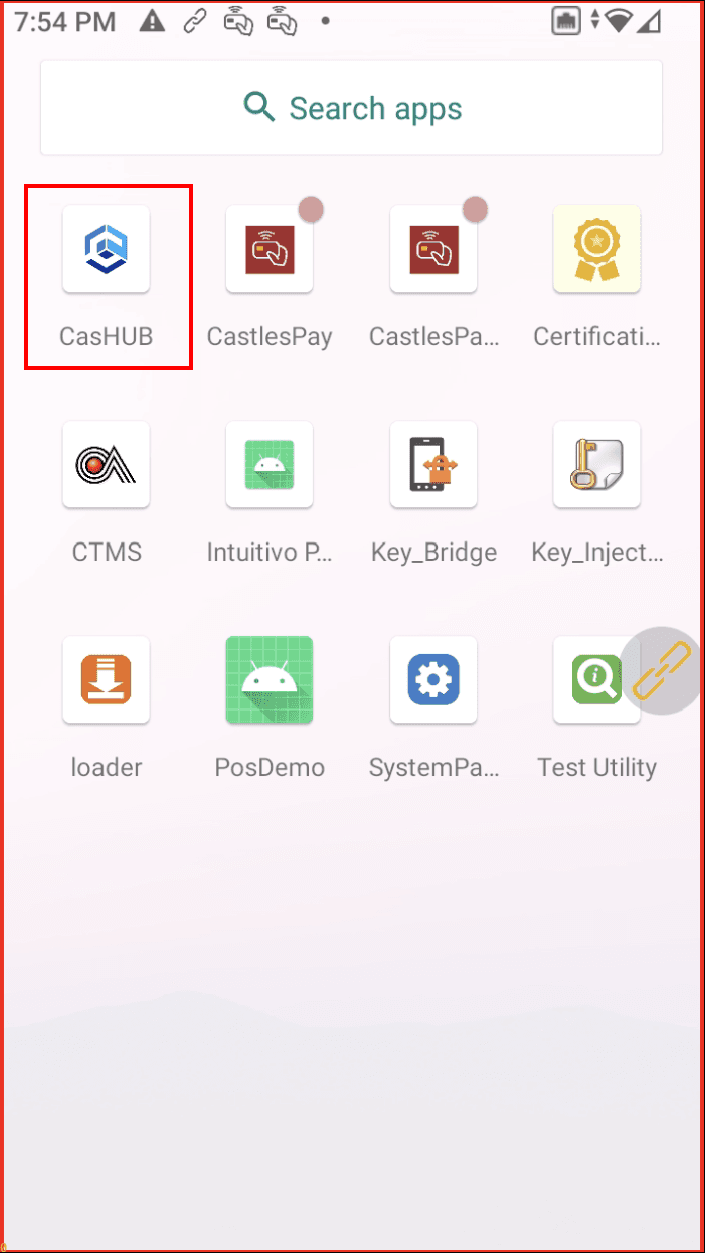
- Within the CasHUB app, a menu will appear. Select the Scan QR option. At this point, the Intuitivo team will generate a QR code to start the linking process between the card reader and the CasHUB platform.
- Follow the on-screen instructions to complete the linking of the card reader to the CasHUB platform and finish setting up the card reader with the APOP device. (Note: Click on apply, allow, yes and ENABLE AUTHORIZATION MODE)